Emulator Integration
How Playback integrates emulators to play your cartridge games.
2 min read
Playback runs game cartridges through emulator cores integrated via the libretro API.
How it works
libretro is a cross-platform API that provides a common interface for emulators. Playback uses it to:
- Load different cores behind a single interface
- Handle input consistently across cores
- Stay portable across Windows, macOS, and Linux
Core selection
Access core selection by going to Settings > Core Selector.
Automatic (recommended)
Playback automatically selects the best core for your device:
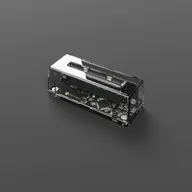
- GB Operator: mGBA
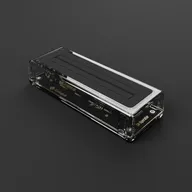
- SN Operator: bsnes
This is the default and recommended setting for most users.
Manual selection
Choose a specific core from the available options. Each core has different features and trade-offs.
Custom cores
Load your own libretro core file:
- Go to Settings > Core Selector
- Select Custom Core
- Browse to the core file on your computer
Important: Custom cores must match your system architecture (AMD64 or ARM) and operating system.
Emulator cores
| Device | Core | Platforms | Features |
|---|---|---|---|
| GB Operator | mGBA | GB, GBC, GBA | Settings, Cheats, Achievements, Shaders, Rumble |
| SN Operator | bsnes | SNES®, SFC | Settings, Cheats, Shaders |
These cores are officially supported and recommended for most users.
Core features explained
| Feature | Description |
|---|---|
| Settings | Core-specific configuration options |
| Cheats | Cheat code support |
| Achievements | RetroAchievements integration |
| Shaders | Visual filter support |
| Rumble | Controller vibration support |
Choosing a core
Use the default cores (mGBA for GB Operator, bsnes for SN Operator). They offer the best balance of accuracy, features, and compatibility.
Note: mGBA supports RetroAchievements. bsnes does not support RetroAchievements, but other SNES® cores are available that do.
You can view the licenses for all included software in the Licenses section of Playback’s settings.
External emulators
If you prefer using a different emulator, you can:
- Back up your game using the Data tab
- Open the backup file in your preferred external emulator
- Save files created by Playback are compatible with most emulators
See also
- Emulator Settings : Configure emulator behavior
- Performance Settings : Optimize for your hardware
- RetroAchievements : Which cores support achievements
- Cheat Codes : Using cheats with different cores
Still need help? Contact our support team