Linux Setup
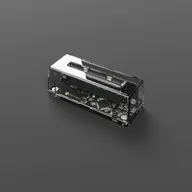
Install Playback and configure your Operator device on Linux distributions.
7 min read
Playback runs on most modern Linux distributions. The recommended way to install is via Flatpak. You’ll also need to set up permissions to allow non-root access to your Operator device.
Quick setup
Run this command in your terminal to automatically configure device permissions:
curl -fsSL https://www.epilogue.co/linux-setup.sh | bashThe script will detect your distribution, add your user to the correct group, and create the necessary udev rules. After running the script, reboot your system, then reconnect your Operator.
If you prefer to set things up manually, follow the instructions below.
Manual setup
System requirements
See the Downloads page for current system requirements.
Installation (Flatpak)
Flatpak is the recommended way to install Playback on Linux.
- Install Flatpak if your distribution doesn’t include it. See flathub.org/setup for instructions
- Download the Flatpak bundle from our downloads page
- Install the bundle:
flatpak install co.epilogue.Playback.amd64.flatpak- Run Playback:
flatpak run co.epilogue.PlaybackInstallation (AppImage, legacy)
AppImage is being phased out in favor of Flatpak and may not be available in future releases.
- Download the Linux AppImage from our downloads page
- Make the AppImage executable:
chmod +x Playback.AppImage- Run the AppImage:
./Playback.AppImageSetting up device permissions
To use your Operator without root access, you’ll need to create udev rules and add your user to the appropriate group for your distribution.
Debian, Ubuntu, Linux Mint, Pop!_OS, and derivatives
These instructions apply to Debian-based distributions including Ubuntu, Linux Mint, Pop!_OS, elementary OS, Zorin OS, and KDE neon.
Add your user to the required groups:
sudo usermod -a -G dialout,plugdev $USERCreate the udev rules file:
sudo nano /etc/udev/rules.d/99-epilogue.rulesAdd the following content:
# GB Operator
SUBSYSTEM=="usb", ATTR{idVendor}=="16d0", ATTR{idProduct}=="123b", MODE="0666"
SUBSYSTEM=="usb", ATTR{idVendor}=="16d0", ATTR{idProduct}=="123c", MODE="0666"
SUBSYSTEM=="usb", ATTR{idVendor}=="16d0", ATTR{idProduct}=="123d", MODE="0666"

# SN Operator
SUBSYSTEM=="usb", ATTR{idVendor}=="16d0", ATTR{idProduct}=="1416", MODE="0666"
SUBSYSTEM=="usb", ATTR{idVendor}=="16d0", ATTR{idProduct}=="1417", MODE="0666"
SUBSYSTEM=="usb", ATTR{idVendor}=="16d0", ATTR{idProduct}=="123e", MODE="0666"
Reload the udev rules:
sudo udevadm control --reload-rules && sudo udevadm triggerReboot your system for the group changes to take effect, then reconnect your Operator.
Fedora, CentOS, RHEL, and derivatives
These instructions apply to Fedora Workstation, CentOS, RHEL, AlmaLinux, and Rocky Linux.
Add your user to the dialout group:
sudo usermod -a -G dialout $USERCreate the udev rules file:
sudo nano /etc/udev/rules.d/99-epilogue.rulesAdd the following content:
# GB Operator
SUBSYSTEM=="usb", ATTR{idVendor}=="16d0", ATTR{idProduct}=="123b", MODE="0666"
SUBSYSTEM=="usb", ATTR{idVendor}=="16d0", ATTR{idProduct}=="123c", MODE="0666"
SUBSYSTEM=="usb", ATTR{idVendor}=="16d0", ATTR{idProduct}=="123d", MODE="0666"

# SN Operator
SUBSYSTEM=="usb", ATTR{idVendor}=="16d0", ATTR{idProduct}=="1416", MODE="0666"
SUBSYSTEM=="usb", ATTR{idVendor}=="16d0", ATTR{idProduct}=="1417", MODE="0666"
SUBSYSTEM=="usb", ATTR{idVendor}=="16d0", ATTR{idProduct}=="123e", MODE="0666"
Reload the udev rules:
sudo udevadm control --reload-rules && sudo udevadm triggerReboot your system for the group changes to take effect, then reconnect your Operator.
Fedora Silverblue, Kinoite, Bazzite, and other immutable distributions
On immutable Fedora variants (including Bazzite), the dialout group exists in /usr/lib/group but not in /etc/group, so you need to add it first:
grep "^dialout:" /usr/lib/group | sudo tee -a /etc/groupThen add your user to the group:
sudo usermod -a -G dialout $USERCreate the udev rules file and reload as described in the Fedora section above.
Arch Linux, Manjaro, EndeavourOS, and derivatives
These instructions apply to Arch-based distributions including Manjaro, EndeavourOS, and Garuda Linux.
Add your user to the uucp group:
sudo usermod -a -G uucp $USERCreate the udev rules file:
sudo nano /etc/udev/rules.d/99-epilogue.rulesAdd the following content:
# GB Operator
SUBSYSTEM=="usb", ATTR{idVendor}=="16d0", ATTR{idProduct}=="123b", MODE="0666"
SUBSYSTEM=="usb", ATTR{idVendor}=="16d0", ATTR{idProduct}=="123c", MODE="0666"
SUBSYSTEM=="usb", ATTR{idVendor}=="16d0", ATTR{idProduct}=="123d", MODE="0666"

# SN Operator
SUBSYSTEM=="usb", ATTR{idVendor}=="16d0", ATTR{idProduct}=="1416", MODE="0666"
SUBSYSTEM=="usb", ATTR{idVendor}=="16d0", ATTR{idProduct}=="1417", MODE="0666"
SUBSYSTEM=="usb", ATTR{idVendor}=="16d0", ATTR{idProduct}=="123e", MODE="0666"
Reload the udev rules:
sudo udevadm control --reload-rules && sudo udevadm triggerReboot your system for the group changes to take effect, then reconnect your Operator.
openSUSE
Add your user to the dialout group:
sudo usermod -a -G dialout $USERAlternatively, you can use YaST to add the dialout group to your user account.
Create the udev rules file:
sudo nano /etc/udev/rules.d/99-epilogue.rulesAdd the following content:
# GB Operator
SUBSYSTEM=="usb", ATTR{idVendor}=="16d0", ATTR{idProduct}=="123b", MODE="0666"
SUBSYSTEM=="usb", ATTR{idVendor}=="16d0", ATTR{idProduct}=="123c", MODE="0666"
SUBSYSTEM=="usb", ATTR{idVendor}=="16d0", ATTR{idProduct}=="123d", MODE="0666"

# SN Operator
SUBSYSTEM=="usb", ATTR{idVendor}=="16d0", ATTR{idProduct}=="1416", MODE="0666"
SUBSYSTEM=="usb", ATTR{idVendor}=="16d0", ATTR{idProduct}=="1417", MODE="0666"
SUBSYSTEM=="usb", ATTR{idVendor}=="16d0", ATTR{idProduct}=="123e", MODE="0666"
Reload the udev rules:
sudo udevadm control --reload-rules && sudo udevadm triggerReboot your system for the group changes to take effect, then reconnect your Operator.
Gentoo and Void Linux
Add your user to the uucp group:
sudo usermod -a -G uucp $USERCreate the udev rules file:
sudo nano /etc/udev/rules.d/99-epilogue.rulesAdd the following content:
# GB Operator
SUBSYSTEM=="usb", ATTR{idVendor}=="16d0", ATTR{idProduct}=="123b", MODE="0666"
SUBSYSTEM=="usb", ATTR{idVendor}=="16d0", ATTR{idProduct}=="123c", MODE="0666"
SUBSYSTEM=="usb", ATTR{idVendor}=="16d0", ATTR{idProduct}=="123d", MODE="0666"
SUBSYSTEM=="tty", ATTRS{idVendor}=="16d0", ATTRS{idProduct}=="123b", MODE="0666"
SUBSYSTEM=="tty", ATTRS{idVendor}=="16d0", ATTRS{idProduct}=="123c", MODE="0666"
SUBSYSTEM=="tty", ATTRS{idVendor}=="16d0", ATTRS{idProduct}=="123d", MODE="0666"

# SN Operator
SUBSYSTEM=="usb", ATTR{idVendor}=="16d0", ATTR{idProduct}=="1416", MODE="0666"
SUBSYSTEM=="usb", ATTR{idVendor}=="16d0", ATTR{idProduct}=="1417", MODE="0666"
SUBSYSTEM=="usb", ATTR{idVendor}=="16d0", ATTR{idProduct}=="123e", MODE="0666"
SUBSYSTEM=="tty", ATTRS{idVendor}=="16d0", ATTRS{idProduct}=="1416", MODE="0666"
SUBSYSTEM=="tty", ATTRS{idVendor}=="16d0", ATTRS{idProduct}=="1417", MODE="0666"
SUBSYSTEM=="tty", ATTRS{idVendor}=="16d0", ATTRS{idProduct}=="123e", MODE="0666"
Note: Gentoo includes both SUBSYSTEM=="usb" and SUBSYSTEM=="tty" rules. Some Gentoo configurations (particularly with systemd) may require the tty rules for proper device permissions. The ATTRS syntax (with ‘s’) is used for tty rules to match attributes from the parent USB device.
Reload the udev rules:
sudo udevadm control --reload-rules && sudo udevadm triggerReboot your system for the group changes to take effect, then reconnect your Operator.
NixOS
In your /etc/nixos/configuration.nix, add your user to the required groups and configure the udev rules:
users.users.YOUR_USERNAME = {
  extraGroups = [ "dialout" "plugdev" ];
};

services.udev.extraRules = ''
  # GB Operator
  SUBSYSTEM=="usb", ATTR{idVendor}=="16d0", ATTR{idProduct}=="123b", MODE="0666"
  SUBSYSTEM=="usb", ATTR{idVendor}=="16d0", ATTR{idProduct}=="123c", MODE="0666"
  SUBSYSTEM=="usb", ATTR{idVendor}=="16d0", ATTR{idProduct}=="123d", MODE="0666"
  SUBSYSTEM=="tty", ATTRS{idVendor}=="16d0", ATTRS{idProduct}=="123b", MODE="0666"
  SUBSYSTEM=="tty", ATTRS{idVendor}=="16d0", ATTRS{idProduct}=="123c", MODE="0666"
  SUBSYSTEM=="tty", ATTRS{idVendor}=="16d0", ATTRS{idProduct}=="123d", MODE="0666"
  # SN Operator
  SUBSYSTEM=="usb", ATTR{idVendor}=="16d0", ATTR{idProduct}=="1416", MODE="0666"
  SUBSYSTEM=="usb", ATTR{idVendor}=="16d0", ATTR{idProduct}=="1417", MODE="0666"
  SUBSYSTEM=="usb", ATTR{idVendor}=="16d0", ATTR{idProduct}=="123e", MODE="0666"
  SUBSYSTEM=="tty", ATTRS{idVendor}=="16d0", ATTRS{idProduct}=="1416", MODE="0666"
  SUBSYSTEM=="tty", ATTRS{idVendor}=="16d0", ATTRS{idProduct}=="1417", MODE="0666"
  SUBSYSTEM=="tty", ATTRS{idVendor}=="16d0", ATTRS{idProduct}=="123e", MODE="0666"
'';
Rebuild your system:
sudo nixos-rebuild switchReboot your system, then reconnect your Operator.
Steam Deck (SteamOS)
For Steam Deck setup, see our dedicated Steam Deck Setup guide.
You can also run our setup script directly on the Steam Deck. In Desktop Mode, open Konsole and run:
curl -fsSL https://www.epilogue.co/linux-setup.sh | bashThe script will automatically detect SteamOS, configure the udev rules, add you to the correct group, and set up persistence through SteamOS updates.
Other distributions
If your distribution isn’t listed above, you can determine the correct group by checking device ownership when the Operator is connected:
ls -l /dev/ttyACM0This will show something like crw-rw---- 1 root dialout .... The group name (e.g., dialout or uucp) is what you need to add your user to:
sudo usermod -a -G GROUP_NAME $USERThen create the udev rules as described above for your distribution.
Troubleshooting
Operator not detected?
- Make sure you’ve completed the udev rules setup above
- Verify you’ve logged out and back in after adding groups
- Check that the device appears with
lsusb - Try unplugging and reconnecting the Operator after reloading udev rules
Permission denied errors?
- Don’t run Playback with
sudo. This can cause audio issues with PulseAudio/PipeWire - Follow the udev rules setup to grant permissions to your regular user
- Verify your group membership with
groups $USER
Flatpak won’t install?
- Make sure Flatpak is installed and configured. See flathub.org/setup for your distribution
- Run
flatpak remote-add --if-not-exists flathub https://flathub.org/repo/flathub.flatpakrepoto add the Flathub repository
AppImage won’t run? (legacy)
AppImage is being phased out in favor of Flatpak. If you are still using the AppImage:
- Make sure you’ve made it executable with
chmod +x - Install FUSE if needed:
- Ubuntu 22.04 and earlier:
sudo apt install libfuse2 - Ubuntu 24.04 and later:
sudo apt install libfuse2t64 - Fedora:
sudo dnf install fuse - Arch-based:
sudo pacman -S fuse2 - openSUSE:
sudo zypper install libfuse2
- Ubuntu 22.04 and earlier:
Still need help? Contact our support team